Visual Git Interface
for Non-Developers.
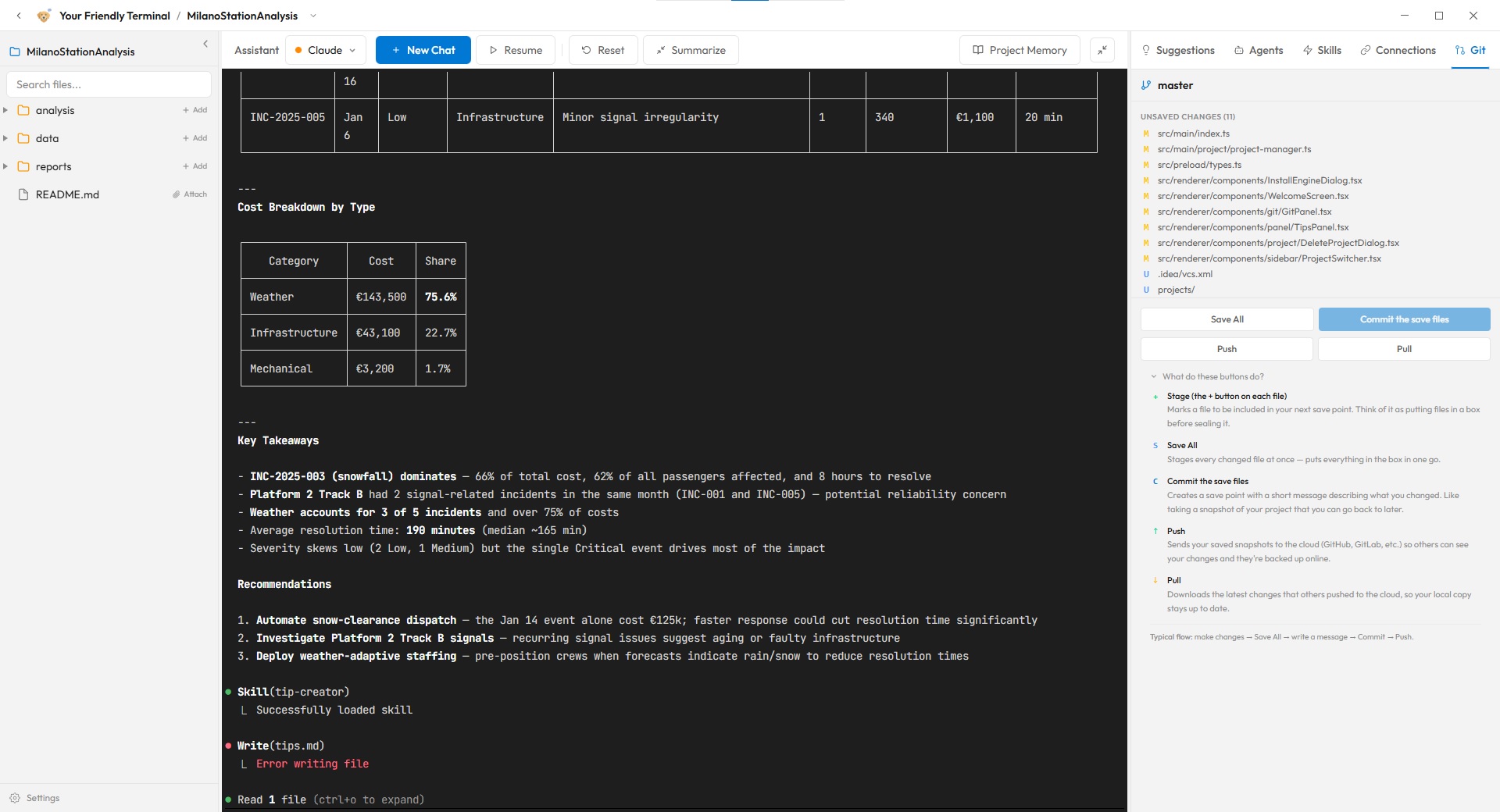
Git is essential for tracking changes in any project, but its command-line interface is notoriously difficult for beginners. Friendly Terminal solves this with a visual Git panel that uses plain-English labels and descriptions — so you can use professional version control without memorizing a single command.
What is Git and Why Should You Care?
Git is the world's most widely used version control system, with over 100 million developers relying on it according to GitHub. Think of it as an unlimited "undo" history for your entire project. If something breaks, you can go back to any previous version. If you're working with others, Git helps merge everyone's changes together. Yet studies show that Git's command-line interface is one of the top barriers for non-technical users entering software development. Friendly Terminal removes that barrier entirely.
How Friendly Terminal Makes Git Accessible
Every Button Explains Itself
In a traditional terminal, you'd type git add . && git commit -m "message" && git push to save your work. In Friendly Terminal, you see labeled buttons that tell you exactly what they do. "Save your changes locally," "Send your changes to the cloud," "Get the latest version" — no jargon, no guessing.
Visual Change Tracking
See exactly which files have changed, what was added, and what was removed — all in a clean visual interface. Changed files are highlighted, and you can review each change before saving it. No need to run git diff or git status in a terminal.
One-Click Workflows
The most common Git operations — staging changes, committing with a message, and pushing to a remote repository — are combined into simple, one-click workflows. Friendly Terminal handles the complex Git commands behind the scenes while you focus on your project.
Git Terminology Made Simple
| Git Term | What It Means | In Friendly Terminal |
|---|---|---|
| Stage | Mark files to include in your next save | Check a box next to changed files |
| Commit | Save a snapshot of your changes locally | Click "Save changes" and add a note |
| Push | Upload your saved changes to the cloud | Click "Send to cloud" |
| Pull | Download the latest changes from the cloud | Click "Get latest" |
| Branch | A separate copy to experiment on safely | Visual branch selector with descriptions |
AI-Assisted Version Control
Since Friendly Terminal integrates Claude Code, Gemini CLI, and OpenAI Codex, the AI can also help you with Git operations. Ask the AI to "save my progress" or "undo the last change" and it will handle the Git commands for you. You can also ask it to explain what happened in your project's history — in plain English.